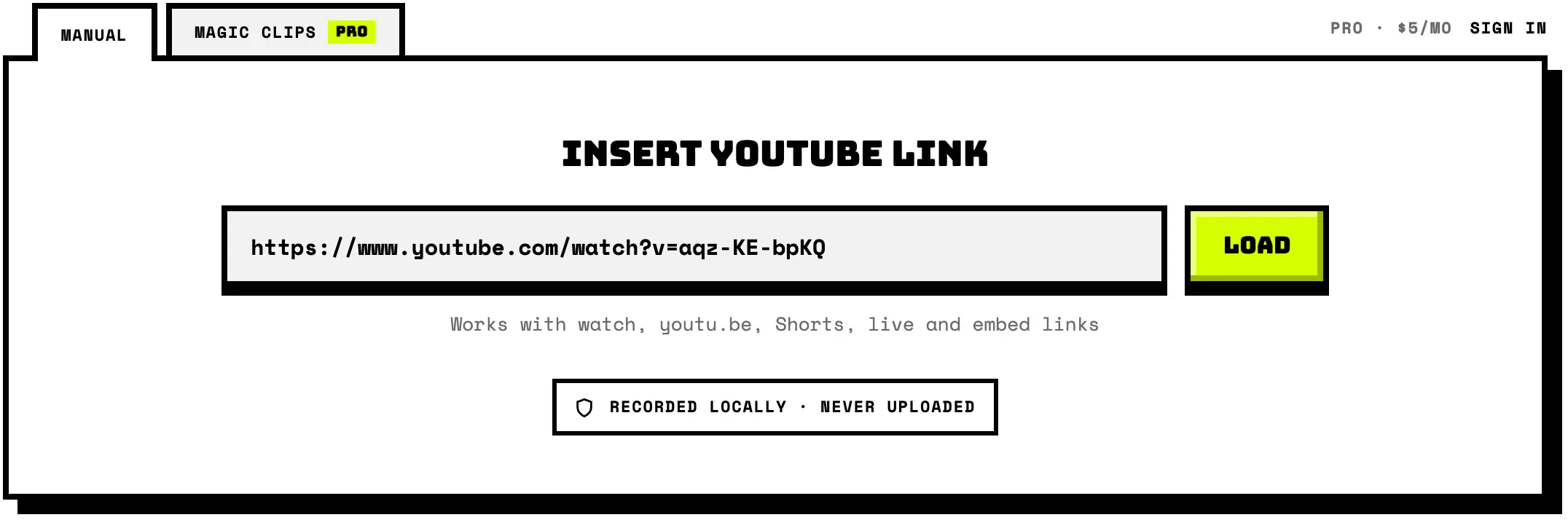
Insert YouTube link
Works with watch, youtu.be, Shorts, live and embed links
Manual clipping is free · no watermarkMagic clips are Pro · $5/mo
Recording needs Chrome or Edge on a desktop. You can still preview the video and pick times here.
Loading player
Recorded locally · never uploaded
Pick This Tab and keep tab audio on.
An ad is running in the player. Recording starts the moment your segment does, so the ad won't be in the clip. If YouTube shows a Skip button, you can use it.
Scrolling is paused so the player stays in frame. You'll hear the clip while it records.
Stay on this tab. The conversion runs locally and stops if the page closes.
The share dialog closed without a tab, so nothing was recorded. Pick This Tab and keep “Share tab audio” on.
Phones and tablets can't record their own tab, so the recorder only runs in Chrome or Edge on a desktop. Copy this link and open it there. The video and your choices come along.
Pro only. AI finds the clips, you pick.1 run = 1 credit · 0 / 250 left
Reading the captions and description. A few seconds; nothing is uploaded.
Recorded locally, never uploaded.
Reserved for Pro users. Recorded locally, never uploaded.
Open the link in this browser to continue. Your picks stay here.
Saves the files one after another. Allow multiple downloads if Chrome asks.
- Paste link
- Set the moment
- Clip it!
- Download
- Paste link
- AI finds clips
- Clip it!
- Download all
About this tool
Zclipper is a free YouTube clipper that runs in your browser: paste a link, set start and end, and save up to 10 minutes as WebM or MP4, at up to 1080p, with no signup, no watermark and nothing uploaded.
How to clip a YouTube video
- Paste any YouTube link. Watch pages, youtu.be short links, Shorts, live and embed URLs all work. A t= timestamp prefills the start.
- Set the start and end. Drag the two handles (the player follows, so you see the exact frames) or type precise timecodes, then pick WebM or MP4 with captions on or off.
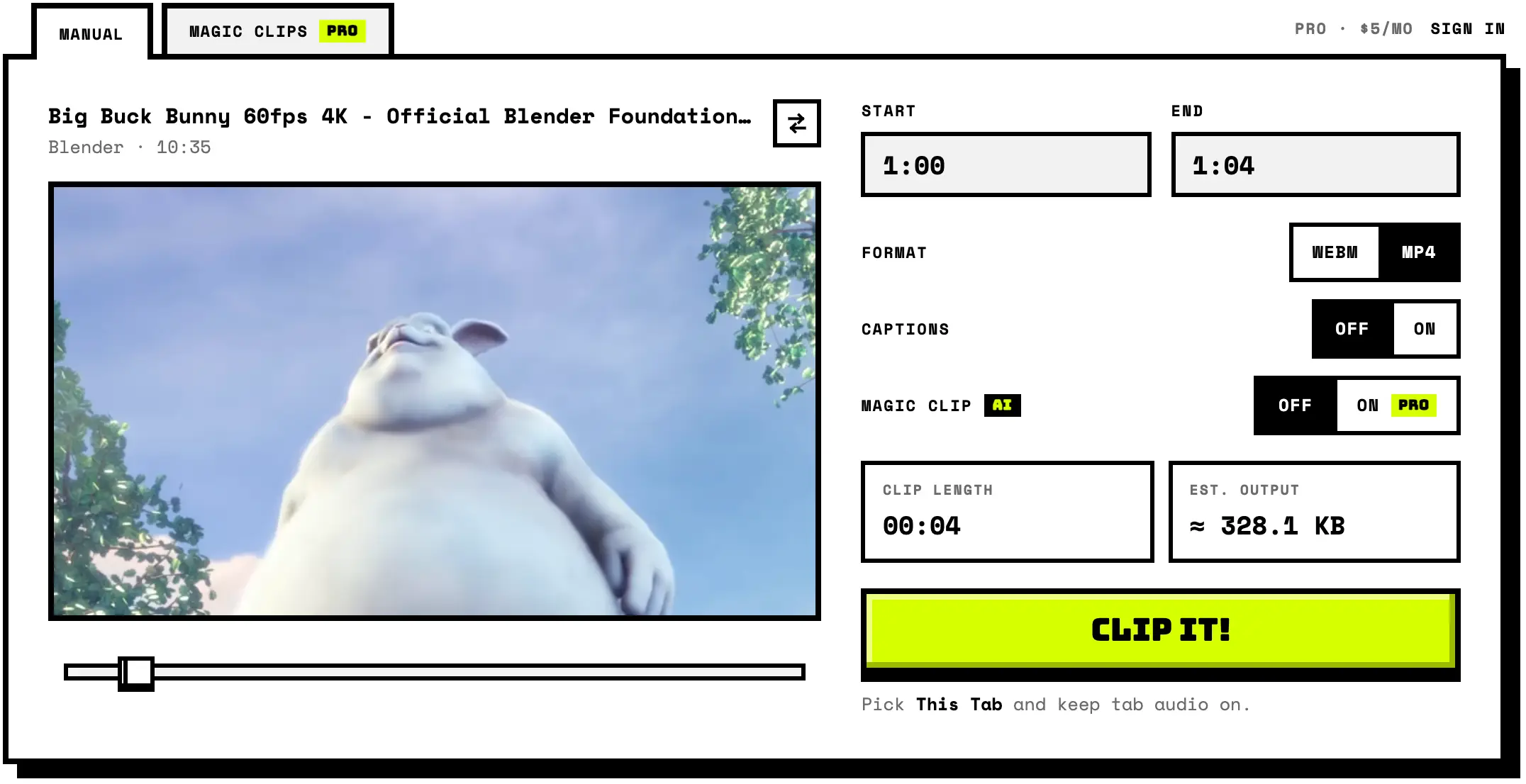
- Click Clip it!. Choose This Tab in the share dialog. Playback jumps to your start time; recording stops itself at the end time.
- Download the clip. It is assembled locally by your browser and saved to your device. Nothing is uploaded.
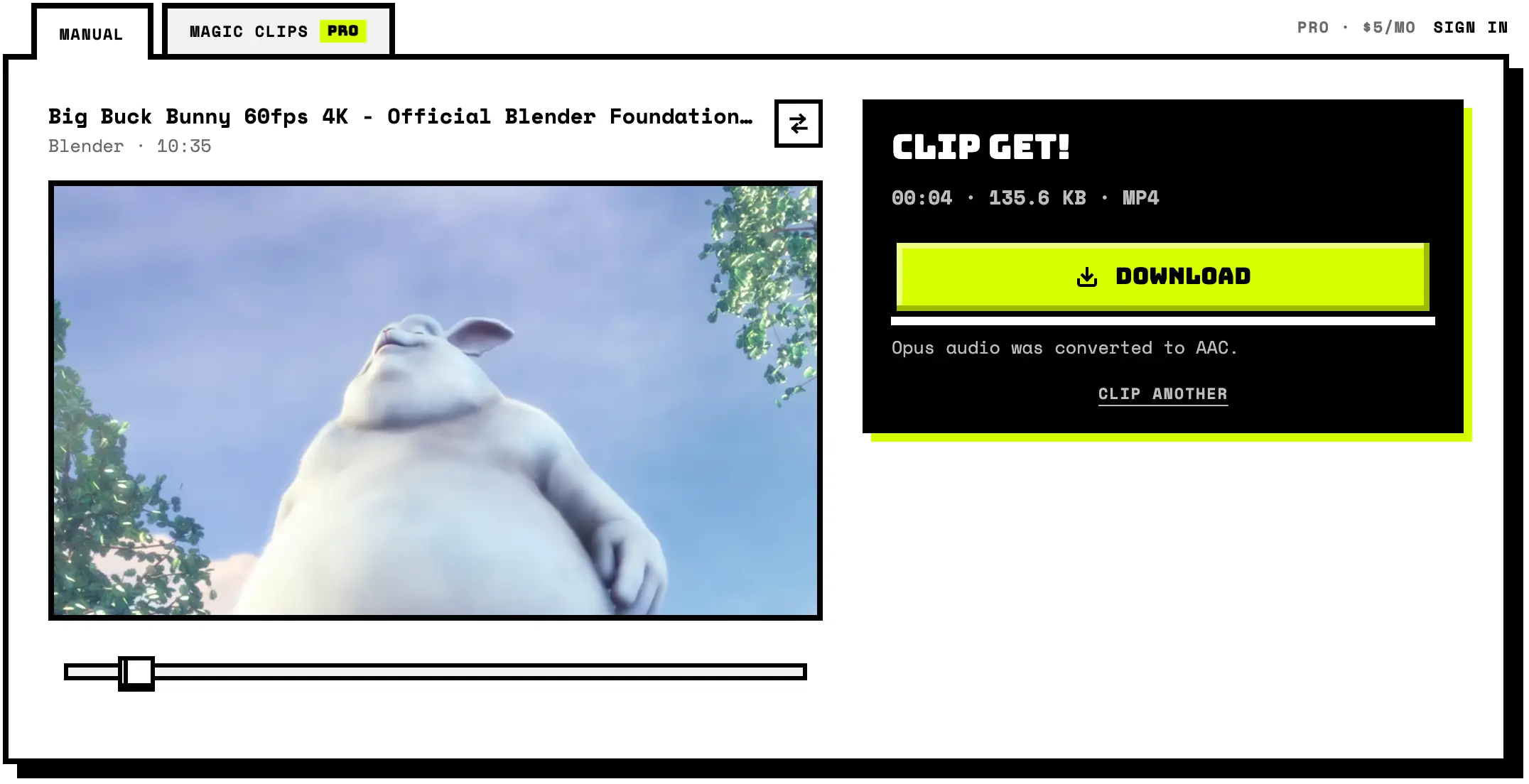
Recording is real-time: a 30-second clip takes 30 seconds. Works in Chrome, Edge and other Chromium desktop browsers.
The screenshots show Big Buck Bunny (© 2008 Blender Foundation / www.bigbuckbunny.org), licensed under CC BY 3.0.
Zclipper does not download or host videos; you are responsible for what you clip.
This site uses YouTube API Services. By using it you agree to the YouTube Terms of Service and the Google Privacy Policy.
A free YouTube clipper that runs in the browser: it records a chosen segment of any YouTube video as it plays and saves it as a WebM or MP4 file. There is no signup, no watermark, and nothing is uploaded to a server. It works with watch, youtu.be, Shorts, live and embed links in Chrome or Edge on desktop. Magic Clips, the paid tier, has an AI read the video and propose clips with titles and timecodes; you tick the ones you want and it records them in one pass. $5 a month, 250 runs.
Browsers cannot download YouTube streams (and YouTube's Terms of Service forbid it), so this free online clipper takes a different, honest approach: it plays your chosen segment in the official embedded YouTube player and records it as it plays, like a built-in screen recorder pointed at just the player. Chrome's tab capture records the current tab, Element Capture crops the recording to the player area, and MediaRecorder assembles a WebM (VP9) file of exactly the segment you picked, at playback quality. Zclipper never touches YouTube's video files: it does not request, decrypt, proxy, or store them, and it does not block or skip ads.
Paste any YouTube link (watch pages, youtu.be short links, Shorts, live and embed URLs all work, and a t= timestamp prefills the start time). Drag the two slider handles to frame and cut your segment (the player follows, so you see the exact frames) or type precise timecodes, pick WebM or MP4 as the output, then hit Clip it! and choose This Tab in the share dialog. Playback jumps to your start time and the recording stops itself at the end time.
Recording works in Chrome, Edge and other Chromium desktop browsers, with no extension or software to install: tab self-capture with audio and player-region cropping exist only there for now. Everything else on the page (loading a video, previewing, picking times) works everywhere. Clip quality equals what the player streams at your window size, so set the player quality to 1080p, keep the window large, and leave the tab visible while it records. Recording happens in real time: a 30-second clip takes 30 seconds. If an ad plays, let it finish and record again.
Made for personal use: saving a repro step from a recorded talk, keeping a snippet of a conference session for reference, or clipping a moment for study or commentary. Only clip videos you own, have permission to record, or may lawfully excerpt where you live; never re-publish other people's content as your own, and do not use the tool to get around a rental, purchase, membership, age or region restriction. Your use of the player remains subject to YouTube's Terms of Service.
Recording and conversion run entirely in your browser. Besides the YouTube player, the page reports anonymous visit counts to Cloudflare (no cookies, no profile, nothing that identifies you); the clip never leaves your device.
Clipping vs. downloading
Browsers can't download YouTube's video files, and doing so would break YouTube's Terms of Service. This tool instead records the official player as your segment plays, then saves that recording as a file you can keep. You get a clip of just the part you chose, without circumventing any of YouTube's technical protections and without installing anything. Your use of the embedded player remains subject to YouTube's Terms of Service. Copy-protected videos are refused rather than worked around, and ads are neither blocked nor removed. Recording a clip does not give you any rights in the video; whether a particular use is allowed is your responsibility.
Frequently asked questions about clipping YouTube videos
Does this download the video from YouTube?
No. Browsers cannot fetch YouTube video files, and downloading them would violate YouTube’s terms. Instead, the tool records the official embedded player while your segment plays, using the browser’s own screen-capture permission, exactly like a screen recorder would. That is also why recording takes as long as the clip itself.
YouTube removed Clips: how do I clip a video now?
In April 2026 YouTube stopped letting viewers create Clips; the replacement, Share at Timestamp, only links to a start point. Zclipper does the job Clips did and more: paste any public YouTube link, set a start and an end, and save that segment as an MP4 or WebM file up to 10 minutes long. It’s free, with no account and no watermark. Creators can still clip their own uploads in YouTube Studio.
Can I save a YouTube clip as MP4?
Yes. Pick MP4 as the format before recording and the clip is converted locally in your browser to H.264/AAC right after capture; WebM (VP9/Opus), the native recording format, is also available. The MP4 output plays in video editors, chat apps and on phones alike.
Is there a free YouTube clipper without watermarks?
Yes. This tool is free, adds no watermark, needs no signup or account, and has no export caps. Everything runs in your browser; the only requirement is Chrome or Edge on desktop for the recording step.
Can I clip a YouTube Short?
Yes. Paste the Shorts link (youtube.com/shorts/…) and it loads in the player like any other video; set your start and end times and record. Live streams and embed links work the same way.
Do I need to install an extension or software?
No. Everything runs on this web page using the browser’s built-in screen-capture and recording APIs. There is no extension, no app, no download and no account. That is also why it is private: the clip is assembled locally and never leaves your device.
Can I clip YouTube videos on iPhone or Android?
Not the recording step yet: phones and tablets cannot capture their own tab. You can still load a video and pick your start and end times there; the clip button then hands you a link that opens the same clip, times included, in Chrome or Edge on a desktop.
Why does recording need Chrome or Edge on desktop?
Three APIs make it work: tab self-capture (getDisplayMedia with the current tab), tab audio capture, and Element Capture, which crops the recording to just the player. All three currently exist only in Chromium desktop browsers. Firefox and Safari on a desktop, like phones and tablets, still load the video and let you pick times (and use Magic Clips); the clip button then hands you the link that opens the same clip, times included, in Chrome or Edge.
What quality does the clip have?
The clip records at the quality the player is showing, scaled by your display’s pixel density: a large window on a sharp screen captures up to 1080p. For best results, set the player’s quality menu to 1080p, keep the browser window large, and leave the tab visible while recording.
Why won't some videos record?
A small number of videos (rentals, purchased films and certain licensed content) are delivered with digital rights management, and the browser deliberately produces a blank recording for them. That is the protection working as intended, and there is no way around it here. The tool checks the finished recording and tells you when this has happened, instead of saving a blank file.
Why did an ad end up in my clip, and what about buffering?
The recorder captures whatever the player shows. Pre-roll ads are waited out automatically (recording only starts once your segment actually plays), and buffering pauses are cut out of the clip. A mid-roll ad cannot be removed, so the recording stops with a message. Record the segment again once playback resumes.
Can I clip a YouTube video that isn’t mine?
That depends on what you clip and what you do with it, and it is your responsibility. Short excerpts of someone else’s video for private reference, study, commentary or criticism may fall under fair use or fair dealing depending on where you are and how the clip is used, but that is a judgement call and not something this page can make for you. Never re-upload other people’s content as your own, respect creators and YouTube’s Terms of Service, and when in doubt link to the original video instead. Zclipper is not legal advice and is not a substitute for permission from the creator.
Is anything uploaded while I clip?
No. The page talks to YouTube only to load the official player and to look up the video title. The recording is assembled by MediaRecorder in your browser, and the optional MP4 conversion runs in a local Web Worker using your browser’s WebCodecs. The clip never leaves your device.
What are Magic Clips, and what do they cost?
Magic Clips is the paid tier. An AI watches the video and proposes clips, each with a title, a short blurb and start and end times. You tick the ones worth keeping. They are then recorded one after another from a single tab capture, so a set of clips costs one pass rather than one each. It is $5 a month for 250 runs, a run being one video analysed; re-opening a result or re-picking from it costs nothing more. Manual clipping stays free and needs no account.